
How to Type E with Accent Marks (è, é, ê, ë) on Keyboard
The letter E often appears with accents in languages like French, Spanish, Portuguese, Italian, German and others. These marks change the sound of the letter or help show which syllable is stressed.
Common E with accent characters are:
- Lowercase:
è, é, ê, ë - Uppercase:
È, É, Ê, Ë
In this guide you’ll learn how to type these accented E letters on:
- Windows – using Alt codes
- Mac – using Option (⌥) shortcuts
- Microsoft Word, Excel, and PowerPoint
- Google Docs
- Copy and paste, Character Map, and the Windows emoji / symbol panel
Quick Reference – E with Accent Characters
Tip: Click any letter below to copy it, then paste into your document with Ctrl+V (Windows) or Command+V (Mac).
Refer to this accent keyboard for more accented letters.
Main E with accent characters (with Alt codes)
You can also keep this small table under the widget for SEO and for users who like to see everything in one place:
| Character | Name | Windows Alt code* | Mac shortcut (Option) | Word shortcut (Windows) |
|---|---|---|---|---|
| é | e with acute | Alt + 0233 | ⌥ + E, then e | Ctrl + ‘, then e |
| è | e with grave | Alt + 0232 | ⌥ + `, then e | Ctrl + `, then e |
| ê | e with circumflex | Alt + 0234 | ⌥ + I, then e | Ctrl + ^, then e |
| ë | e with umlaut / diaeresis | Alt + 0235 | ⌥ + U, then e | Ctrl + Shift+;, then e |
| É | capital E with acute | Alt + 0201 | ⌥ + E, then E | Ctrl + ‘, then E |
| È | capital E with grave | Alt + 0200 | ⌥ + `, then E | Ctrl + `, then E |
| Ê | capital E with circumflex | Alt + 0202 | ⌥ + I, then E | Ctrl + ^, then E |
| Ë | capital E with umlaut / diaeresis | Alt + 0203 | ⌥ + U, then E | Ctrl + Shift+;, then E |
*Alt codes must be typed on the numeric keypad with Num Lock turned on.
Note: The widget above will also include extra E variants like
ē, ė, ě, ĕ, ę, ȩ, ḗ, ḕ, ḝ, Ē, Ė, Ě, Ĕ, Ę, Ȩ, Ḗ, Ḕ, Ḝfor copy-and-paste only.
Watch: How to Type E with Accent on Keyboard
If you prefer to watch, here’s a short video that shows the simple pattern for typing è, é, ê, ë on Windows and Mac. The same methods work in Word, Excel, PowerPoint, browsers, and email.
Method 1: Type E with Accent Using Alt Codes (Windows)
On Windows, the quickest way to type E with accent is to use Alt codes.
- Place the cursor where you want the accented letter.
- Turn on Num Lock.
- Hold down the Alt key.
- Type the four-digit Alt code on the numeric keypad.
- Release the Alt key and the letter will appear.
Lowercase E with accent – Alt codes
é– Alt + 0233è– Alt + 0232ê– Alt + 0234ë– Alt + 0235

Uppercase E with accent – Alt codes
É– Alt + 0201È– Alt + 0200Ê– Alt + 0202Ë– Alt + 0203

Important:
- You must use the numeric keypad on the right side of the keyboard. The number row above the letters won’t work.
- On small laptops without a visible numeric keypad, you may need to use an Fn + embedded numpad or use one of the other methods below.
If you use accented letters often, you can print or save a small cheat sheet with these codes.
Method 2: Type E with Accent on Mac (Option Shortcuts)
On Mac, you can use Option (⌥) + key combinations.
Think of it as “first choose the accent, then type the letter”.
- Place your cursor where you want the letter.
- Press and hold Option (⌥), then press a specific key for the accent.
- Release both keys.
- Type the letter e (or E for uppercase).
Shortcuts for lowercase e:
è– ⌥ + `, then eé– ⌥ + E, then eê– ⌥ + I, then eë– ⌥ + U, then e
Shortcuts for uppercase E:
- Turn on Caps Lock or hold Shift when you type the final letter:
È– ⌥ + `, then EÉ– ⌥ + E, then EÊ– ⌥ + I, then EË– ⌥ + U, then E

Quick note: On newer macOS versions, you can also press and hold the E key and choose the accented version from the small popup. The Option shortcuts above are faster once you remember them.
Method 3: Insert E with Accent in Microsoft Word
You can use Alt codes (Windows) and Option shortcuts (Mac) directly in Word. But Word also has its own menu and keyboard shortcuts you might find easier.
3.1 Use Insert > Symbol (Windows & Mac)
- Open your document in Microsoft Word.
- Click where you want the accented letter.
- Go to Insert > Symbol > More Symbols…
- In the Symbol window, set Subset to Latin-1 Supplement.

- Scroll until you see
È É Ê Ëandè é ê ë. - Double-click the letter you want, or click it once and press Insert.
- Click Close when you’re done.
This works the same in Word on both Windows and Mac.
3.2 Use Word’s Built-In Shortcuts (Windows)
Word has special shortcuts that work only inside Word:
For lowercase e:
è– Ctrl + `, then eé– Ctrl + ‘, then eê– Ctrl + ^, then eë– Ctrl + Shift + ;, then e
For uppercase E:
- Turn on Caps Lock, or hold Shift when you type the final letter:
È– Ctrl + `, then EÉ– Ctrl + ‘ , then EÊ– Ctrl + ^, then EË– Ctrl + Shift + ;, then E
These shortcuts are great if you type accented E frequently in Word documents.
Method 4: Insert E with Accent in Excel
In Excel, you can use Alt codes (Windows) or Mac Option shortcuts directly inside a cell. You can also insert the letters from the symbol menu.
- Click the cell where you want the accented E.
- Go to Insert > Symbol in the ribbon.
- In the Symbol dialog, set Subset to Latin-1 Supplement.
- Scroll to find
È É Ê Ëandè é ê ë. - Double-click the one you need or click Insert.
- Click Close.
You can now copy that cell and paste the accented E anywhere else in the sheet.
Method 5: Insert E with Accent in PowerPoint
PowerPoint uses the same symbol window as Word and Excel.
- Open your slide in PowerPoint.
- Click in the text box where you want the letter.
- Go to Insert > Symbol.
- Choose Latin-1 Supplement from the Subset dropdown.
- Click on
È É Ê Ëorè é ê ëand press Insert (or double-click). - Close the dialog.
You can also type Alt codes (Windows) or use Mac Option shortcuts directly in text boxes.
Method 6: Insert E with Accent in Google Docs
Google Docs has a Special Characters tool.
- Open your document in Google Docs.
- Place the cursor where you want the letter.
- Go to Insert > Special characters.
- In the search box, type “e with” or “e acute”, “e grave”, etc.
- Or, use the drawing pad and draw the letter e with the accent you want.
- Or, use the drawing pad and draw the letter e with the accent you want.
- Click on the character (for example
éorê) to insert it. - Close the Special characters window when you’re done.
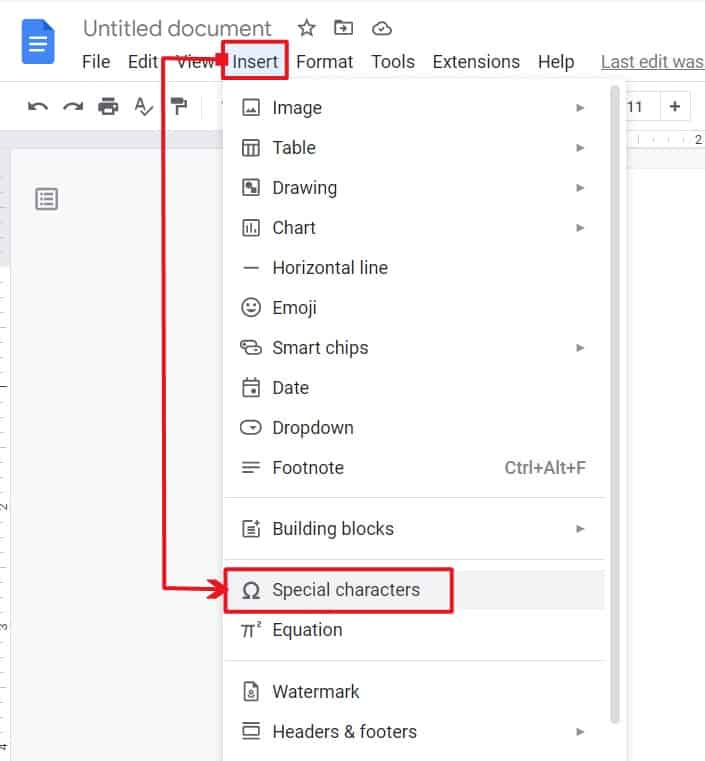
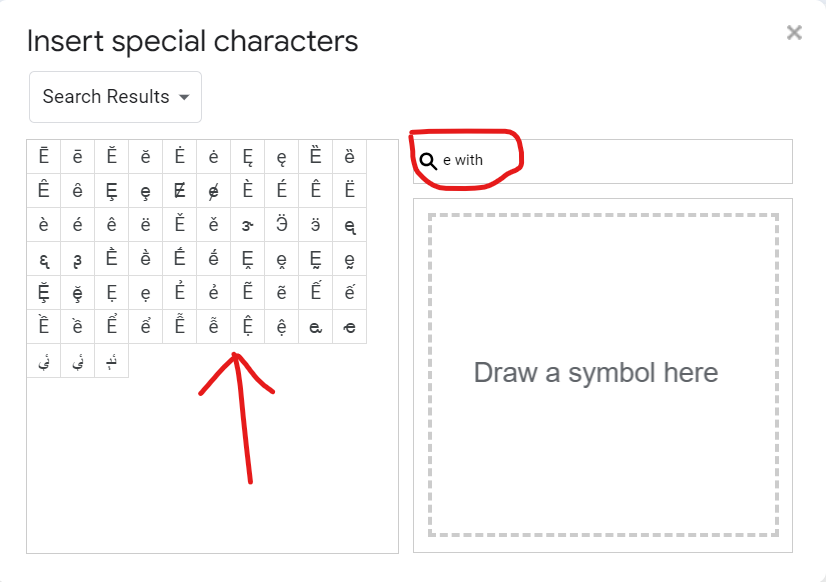
Once you’ve inserted one accented E, you can copy and paste it anywhere else in your document.
Method 7: Copy and Paste E with Accent (All Devices)
Sometimes the fastest method is copy and paste.
You can:
- Use the E with accent picker at the top of this page, or
- Copy from the small list below:
Quick copy list
- è
- é
- ê
- ë
- È
- É
- Ê
- Ë
- Select the letter you need.
- Press Ctrl + C (Windows) or Command + C (Mac) to copy.
- Go back to your document and press Ctrl + V or Command + V to paste.
This works in Word, Excel, PowerPoint, Google Docs, email, browsers, and almost any other app.
Method 8: Use Character Map and Emoji & Symbol Panel (Windows)
8.1 Character Map
The Character Map is a built-in Windows app that lets you copy any symbol.
- Click the Start button and search for Character Map.
- Open the app.
- Choose a font (e.g. Arial).
- Tick Advanced view if you see it.
- Scroll until you find the accented E you need (
è, é, ê, ë, È, É, Ê, Ë). - Click the letter, then click Select and Copy.
- Go back to your document and press Ctrl + V to paste.
8.2 Windows Emoji & Symbol Panel
On Windows 10 and 11 you can also use the emoji panel, which includes many symbols:
- Place your cursor in any app.
- Press Windows key + . (period) or Windows key + ; (semicolon).
- Click the Symbols tab (and then the Latin section if you see it).
- Look for
é, è, ê, ëand click to insert.
FAQs – E with Accent
What is the Alt code for é?
The Alt code for lowercase é is Alt + 0233.
- Turn on Num Lock
- Hold Alt
- Type 0 2 3 3 on the numeric keypad
- Release Alt and
éwill appear.
What is the Alt code for È, É, Ê, Ë?
É– Alt + 0201È– Alt + 0200Ê– Alt + 0202Ë– Alt + 0203
How do I type é on a laptop without a numeric keypad?
Try one of these:
- Use Word shortcuts like Ctrl + ‘, then e.
- Use the E with accent picker at the top of this page and copy and paste.
- Use Character Map or the emoji & symbol panel.
- On a Mac laptop, use Option shortcuts (⌥ + E, then E).
How do I type é on Mac?
Use Option + E, then e. For uppercase É, type Option + E, then E.
You can also press and hold the E key on newer Macs and choose the accented version from the popup.
How do I put any accent over E?
On Windows, the most flexible method is Alt codes:
- Turn on Num Lock.
- Hold Alt.
- Type the Alt code for the accented E you need (for example 0233 for é, 0232 for è).
- Release Alt.
On Mac, use Option shortcuts:
- Option + E, then E for
é - Option +
, then E forÈ` - Option + I, then E for
Ê - Option + U, then E for
Ë
You can also use copy-and-paste from the widget at the top of this page if you need less common variants such as ē, ė, ě, etc.
Conclusion
You now know several easy ways to type E with accent marks:
- Windows: Alt codes with the numeric keypad.
- Mac: Option shortcuts and long-press on the E key.
- Word, Excel, PowerPoint: Insert > Symbol, plus Word’s own shortcuts.
- Google Docs: Insert > Special characters.
- Any device: Copy and paste from this page, the Character Map, or the Windows emoji & symbol panel.
If you use these letters often, consider:
- Keeping a small cheat sheet of the main Alt codes, and
- Bookmarking this page, so you can quickly open it and use the click-to-copy E with accent widget whenever you need.
Related Accent Letters
- A with accent (Alt codes, Mac shortcuts, keyboard & copy/paste)
- B with accent (type on keyboard, shortcuts & copy/paste)
- C with accent (Alt codes, shortcuts, copy & paste)
- D with accent (keyboard shortcuts, Alt codes & copy/paste)
- F with accent (type on keyboard, shortcuts & copy/paste)
- G with accent (Alt codes, keyboard shortcuts & copy/paste)
- H with accent (type on keyboard, shortcuts & copy/paste)
- I with accent (Alt codes, Mac shortcuts & copy/paste)
- J with accent (keyboard shortcuts, Alt codes & copy/paste)
- K with accent (Alt codes, shortcuts, copy & paste)
- L with accent (type on keyboard, shortcuts & copy/paste)
- M with accent (Alt codes, keyboard shortcuts & copy/paste)
- N with accent (Alt codes, Mac shortcuts & copy/paste)
- O with accent (type on keyboard, shortcuts & copy/paste)
- P with accent (Alt codes, keyboard shortcuts & copy/paste)
- Q with accent (type on keyboard, shortcuts & copy/paste)
- R with accent (Alt codes, shortcuts, copy & paste)
- S with accent (Alt codes, Mac shortcuts & copy/paste)
- T with accent (type on keyboard, shortcuts & copy/paste)
- U with accent (Alt codes, keyboard shortcuts & copy/paste)
- V with accent (type on keyboard, shortcuts & copy/paste)
- W with accent (Alt codes, shortcuts, copy & paste)
- X with accent (type on keyboard, shortcuts & copy/paste)
- Y with accent (Alt codes, Mac shortcuts & copy/paste)
- Z with accent (type on keyboard, shortcuts & copy/paste)